
Switching EPOS without closing the shop
Fear of downtime keeps a lot of owners with a system they've stopped liking. Here's a seven-day switching plan that keeps the shop open the whole way through.
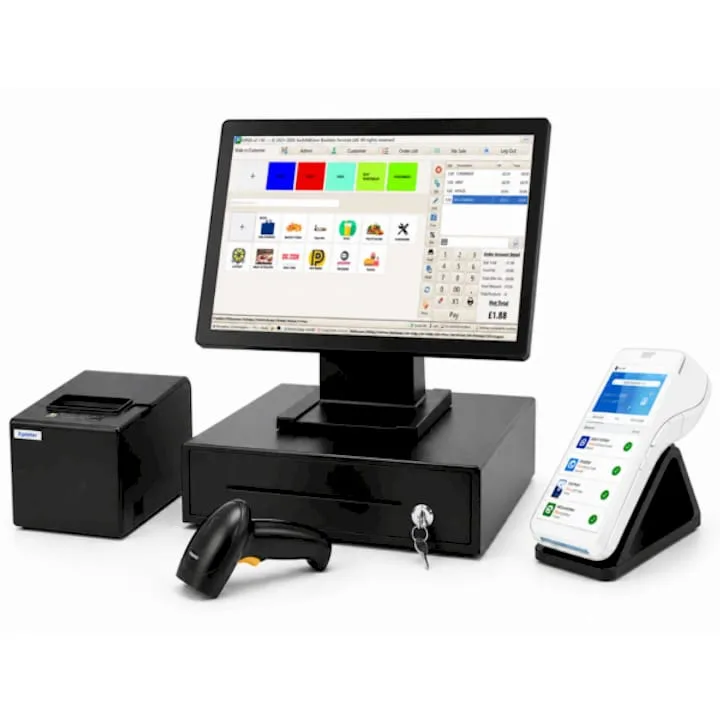
Most owners who want to change EPOS provider don't stay because they're happy. They stay because the thought of a Saturday with no working till is worse than another year of a system they've stopped liking.
That fear is reasonable, and it's also manageable. A single-till independent shop can move providers in a week without closing for a minute, provided the work happens in the right order. Here's the plan we use.
Before you start: two things to sort out
First, check your existing contract. Find the end date, the notice period and the format notice has to be given in. If you're inside the notice window, send it in writing now, even if you haven't finally decided — most agreements are easier to reinstate than to escape after an auto-renewal.
Second, check whether card processing is a separate agreement. Very often it is, with its own term. Cancelling the till software does not automatically cancel a merchant account or a terminal rental.
Do these two things first and the rest of the week is straightforward.
The seven-day plan
Day 1 — Export everything
While you still have full access to the old system, export and save:
- Product list with barcodes, cost prices and sell prices
- Current stock quantities
- Supplier list
- Customer records and any loyalty balances
- At least twelve months of sales reports, plus VAT summaries
- Any images or descriptions if you also sell online
Save it in two places. This is the step people rush and regret.
Day 2 — Clean the product list
Don't migrate rubbish. Open the export and delete discontinued lines, merge duplicates, fix categories and fill in missing cost prices. An afternoon here saves weeks of confusing reports later. If a line hasn't sold in a year and you're not restocking it, leave it behind.
Day 3 — Send the data to your new provider
A good provider imports it for you and sends back a preview for checking. What to check in the preview: prices, VAT rates on every line, barcodes on your top sellers, and that your categories came across as you intended. Flag anything wrong now, not on install day.
Day 4 — Decide the till layout
Have the on-screen buttons arranged around what you actually sell most, not alphabetically. Write down your fifteen most frequent non-barcoded items and insist they're on the first screen. This is the single biggest factor in whether staff like the new system.
Day 5 — Install, with the old till still on the counter
Set the new system up alongside the old one. Don't unplug anything. Run five or six real transactions on the new till — a cash sale, a card sale, a refund, a multi-buy, a discount — and check each one appears correctly in the reports.
This is also when the card machine gets paired. Test integrated card payments with a live transaction and a live refund, on the actual card machine you'll be using.
Day 6 — Train on a quiet trading day
Train during real trade, not in an empty shop after hours. An hour of serving genuine customers teaches more than three hours of demonstration. Make sure the person who works your busiest shift is trained, not just the owner.
Every member of staff gets their own login before go-live. Cover: taking a sale, taking a card payment, a refund, a price override, adding a customer, and what to do if the printer stops.
Day 7 — Go live on your quietest morning
Switch over at opening on a Monday or Tuesday, not a Friday. Keep the old till plugged in and powered on for a fortnight — not to trade on, but so you can look things up.
Do a full cash-up on the new system at the end of the first day with someone experienced present, so everyone learns what a correct end-of-day looks like.
What to check in the first week
- Card payments settling into your bank on the timescale you were told
- VAT rates correct on every category, especially anything zero-rated or mixed
- Stock deducting properly — spot-check five lines against a physical count
- Refunds and voids showing correctly in reports
- Staff logins all working, with the right permissions
- Receipt showing your correct business name, address and VAT number
- End-of-day totals reconciling with the cash drawer
- Any online store showing the same stock figures as the shop
Book fifteen minutes on day three and day seven to run through this list. Small problems found in week one are trivial; the same problems found at year-end are not.
Running two systems briefly is fine
There's a temptation to make a clean break to save a month's subscription. Resist it. A fortnight of overlap costs you very little and gives you somewhere to look up an old transaction, a customer's details or last year's figures.
Cancel the old subscription only once you've confirmed three things: your exports are complete and readable, the new system has run a full trading week without a problem, and the card processing has settled correctly at least twice.
What this looks like in a real business
A café with one till and four staff starts on a Monday, exports its menu and sales history the same day, and spends Tuesday evening deleting sixty items it no longer serves. The new system is loaded by Thursday and installed alongside the old one on Friday morning, quietly, before the lunch rush.
Saturday's busy service runs on the old till. Monday morning it goes live on the new one, with the owner and the head barista both trained. The old system stays powered on until the following weekend. Total trading time lost: none.
Frequently asked questions
Will I have to close my shop to change EPOS system?
No. If the new system is installed alongside the old one and you go live on a quiet morning, you shouldn't lose any trading time. The work that takes time — cleaning the product list and training staff — all happens while you're still trading normally on your existing till.
Can I transfer my product list to a new EPOS system?
In almost all cases, yes. Export it from your current system as a spreadsheet and your new provider imports it. Ask for a preview before install day so you can check prices, VAT rates and barcodes. If your current provider makes exporting difficult, that's worth knowing before you commit anywhere.
How long does EPOS installation take?
The physical setup of a single till is typically an hour or two once the data is loaded. We offer next-day setup on most bundles, but the honest answer is that install day is quick and the preparation beforehand is what determines whether it goes well.
What happens to my card machine when I switch till?
It depends whether your existing terminal can integrate with the new system. If it can't, you'll either key amounts in manually or move to a card machine that pairs with the till. Ask both providers before install day so there's no surprise on the counter.
Do I need to keep my old sales data?
Yes. HMRC requires businesses to keep records for a set number of years, and your old sales history may be the only copy. Export it before you cancel anything and store it somewhere you'll still be able to find it in five years.
Plan the week, not the leap
Switching isn't risky when it's sequenced. Export first, clean the data, install alongside, train during trade, go live on a quiet morning, and keep the old kit on for a fortnight.
If you'd like a switching plan built around your own trading week, book a free demo. A UK-based member of our team will look at your current setup, tell you what to export and when, and set out a plan with dates on it. Next-day setup is available on most EPOS systems once your data's ready — and there's no charge for the conversation either way.
More EPOS guides

EPOS Running Costs: What Will Your Business Pay Each Month?
Your EPOS subscription is only one part of the monthly bill. Card processing, terminal rental, integrations and everyday supplies can also affect what you pay. This Zivaro guide breaks down EPOS running costs, with a practical budget example and clear questions to help your UK business compare packages and plan ahead.
Read article
POS Warranty and Guarantee: A Practical Guide for UK Businesses
What does your POS warranty actually cover? This guide from Zivaro explains what UK businesses should check before buying, from equipment protection and repair arrangements to support hours, exclusions and cancellation terms. Learn which questions to ask and what to do if your EPOS system develops a fault.
Read article
How to Train Temporary Staff to Take Card Payments Confidently
Help temporary staff take card payments confidently from their first shift. This practical guide covers checking amounts, confirming payments, handling declines and knowing when to ask for help, with everyday examples for UK shops, cafés, restaurants and takeaways.
Read article