
What Is an EPOS System? A Practical Guide for UK Small Businesses
What is an EPOS system, and how can it help your business? This practical guide from Zivaro explains how EPOS works, from recording sales and taking card payments to tracking stock and reviewing reports. Discover what UK shops, cafés and restaurants should consider when choosing a system.
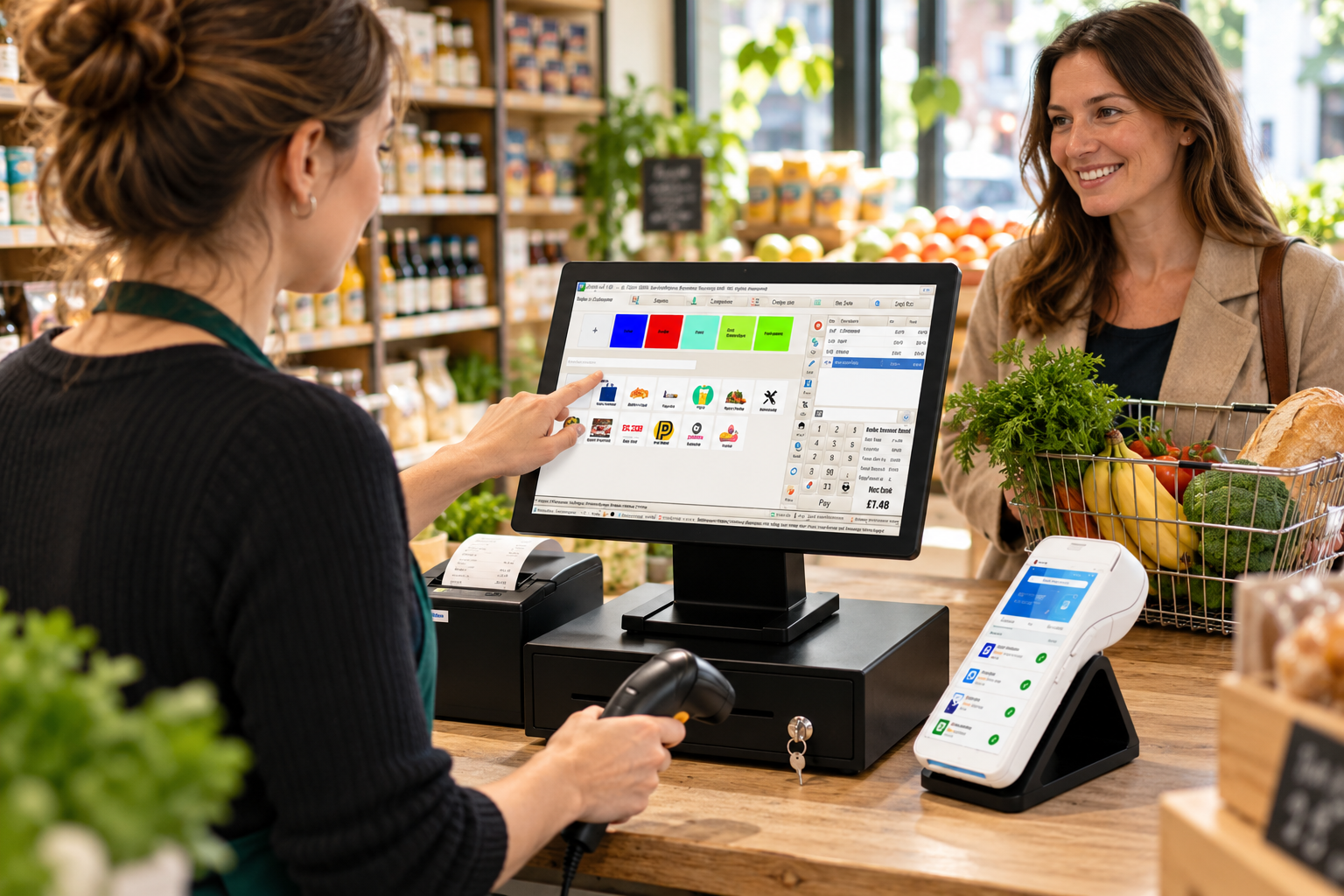
An EPOS system is a computerised till that records sales and can connect your checkout with stock control, card payments and business reports. EPOS stands for Electronic Point of Sale. It combines equipment, such as a touchscreen and barcode scanner, with software that manages your transactions.
For a convenience shop, that could mean scanning groceries and updating stock as products sell. For a restaurant, it might mean recording a table’s order, sending instructions to the kitchen and splitting the bill afterwards.
You don’t need to understand complicated technology to choose one. You need to know what it does, which features your business needs and how it will work during a normal trading day.
What does EPOS stand for?
EPOS stands for Electronic Point of Sale. The point of sale is where your customer completes a purchase, whether that’s a shop counter, restaurant table or takeaway collection desk.
An EPOS system records the details of that purchase. Depending on the software, those details can include the products sold, quantities, discounts, payment method and staff member responsible.
That makes it useful beyond taking money. You can look back at individual transactions or review a whole week’s trading without adding up paper receipts.
POS and EPOS are often used interchangeably. When comparing systems, focus on what they actually do rather than the wording in the product name.
How does an EPOS system work?
Here’s how it works when a customer buys something from your business.
1. Add the products or services
Your cashier scans a barcode, searches for an item or selects a button on the touchscreen.
In a café, staff might tap “latte”, choose the size and add an extra shot. In a mobile phone shop, they might scan a charging cable and select a screen-fitting service.
2. Calculate the amount due
The software uses the saved prices and applies any configured offers, discounts and tax settings.
This depends on accurate setup. A system can calculate consistently, but it won’t know that someone entered the wrong selling price.
3. Take the payment
The customer pays using a payment method your business accepts.
With an integrated card terminal, the amount passes from the EPOS to the terminal. The payment result returns to the till, helping staff record the transaction correctly.
With a standalone terminal, staff usually enter the amount manually and select the relevant payment method on the till.
4. Save the transaction
Once the sale is completed, the EPOS saves the transaction and can issue a receipt.
For products with stock tracking enabled, it can also reduce the recorded quantity. The sale then appears in the relevant reports.
What does an EPOS setup include?
An EPOS setup has two main parts: hardware and software.
Hardware means the physical equipment. Software means the programme that runs the till and manages your records.
Your business may only need some of these.
A small clothing shop could use a touchscreen, scanner, printer and cash drawer. A busy takeaway might need kitchen printing, a customer-facing display and separate order collection functions.
Check that existing equipment is compatible before assuming you can reuse it.
EPOS vs a traditional till
A traditional cash register mainly handles transactions and basic totals. An EPOS system can organise more detailed information about what happens during those transactions.
What are the benefits of EPOS?
Keep product records in one place
A product catalogue holds your item names, prices, barcodes and categories.
For example, a grocery shop can organise products into drinks, bakery, household and chilled food. Staff can search for an item when its barcode won’t scan instead of guessing the price.
Keeping that catalogue tidy also makes your reports more useful.
Make stock decisions with better information
Stock control works best when sales, deliveries, returns and losses are all recorded.
Suppose your shop receives 40 phone cases and sells 12. The system should show 28 remaining, assuming there are no other stock movements.
You can use that record to plan replenishment. Physical counts still matter because the software won’t automatically detect an unrecorded breakage or missing item.
Understand your trading patterns
Sales reports can help you see which products sell and when customers buy them.
A sandwich shop might find that its lunchtime meal deal sells strongly on weekdays but attracts little interest on Saturdays. That gives the owner a reason to review weekend preparation and promotions.
Remember that turnover isn’t profit. Margin reports need accurate costs, and product margins don’t necessarily include every business overhead.
Give staff appropriate access
Individual logins and permissions help you control sensitive actions.
A cashier might process normal purchases while a manager approves refunds or large discounts. Transaction histories can then help you investigate mistakes and explain what happened.
Organise cashing up
At closing time, EPOS reports provide recorded totals for cash, card and other payment methods.
Your team can compare the expected cash balance with the money counted. Differences still need investigating, but you start with a clear record rather than a rough estimate.
Which businesses use EPOS?
Retail and convenience shops
Retail businesses commonly need scanning, product search, offers and inventory management.
A convenience shop selling loose produce may also need weighed-item support. Ask the supplier to demonstrate the exact process, including any compatible scales.
Restaurants, cafés and takeaways
Hospitality businesses often need menu modifiers, open orders, kitchen communication and split payments.
For example, a café can record an oat milk substitution as part of the order. A takeaway can send preparation instructions to the kitchen without staff rewriting the ticket.
Zivaro offers hospitality setups with ordering, table management and kitchen printer or display options. Confirm which features are included in the package you’re considering. zivaro.uk
Bars and mobile phone shops
A bar might prioritise quick product buttons, tabs and supervisor approval for voids.
A mobile phone shop may need accessory stock records, clear receipts and service items. If your work involves repairs, warranties or serial numbers, check those requirements separately rather than assuming every EPOS includes them.
What are cloud and AI-powered EPOS?
Cloud EPOS explained
Cloud EPOS uses online servers to store or synchronise information. A supported dashboard can let you review business records away from the till.
Some systems run locally and synchronise online. Others rely more heavily on a continuous connection.
Ask what happens if your internet fails. Till operation, cloud reporting and card authorisation can have different connectivity requirements.
AI-powered EPOS explained
AI-powered EPOS uses analytical tools to identify patterns or generate suggestions from business data.
For example, a tool might flag slow-selling stock or forecast demand using previous sales. Its usefulness depends on the information available and the way the feature works.
Zivaro describes AI-assisted features alongside stock control, integrated payments and cloud reporting on its EPOS system page. Ask to see the functions relevant to your business demonstrated with realistic examples. Zivaro
How to choose the right system
Start with your daily workload. Write down the tasks your staff repeat and the problems you want to solve.
Test your actual checkout process
During a demonstration, ask to see a normal sale, a refund, a discount and a product search.
For hospitality, include an order change and a split bill. If the process feels awkward during a quiet demonstration, investigate before putting it in front of a busy team.
Compare the full cost
Ask for a written breakdown of hardware, subscriptions, installation, training, payment charges and optional integrations.
Check whether prices are per device or per location. Read the contract length, cancellation terms and equipment ownership arrangements too.
Plan the changeover
Agree who will prepare your products or menu, check prices and train staff.
Before going live, test receipts, permissions, stock opening balances and connected equipment. A careful setup gives your team a clearer starting point.
See how Zivaro could fit your business
An EPOS system should support the way you trade, from the first sale of the morning to the final cash count.
Explore Zivaro’s EPOS solutions and arrange a demonstration around your products, team and reporting needs.
Looking for a clearer way to manage sales, stock and payments? Visit www.zivaro.uk or call 0333 0389707 to discuss your business and book an EPOS demonstration.
Frequently asked questions
What is an EPOS system in simple terms?
An EPOS system is a digital till that records sales. Depending on its features, it can also manage stock, connect card payments and produce business reports.
Is an EPOS system the same as a card machine?
No. A card machine processes card payments. EPOS manages the transaction and related business records. Compatible systems can connect to exchange payment amounts and results.
Do small businesses need EPOS?
It depends on their requirements. EPOS can be useful when a business needs itemised sales records, stock tracking or more detailed reporting than its existing till provides.
Can EPOS work without the internet?
Some systems support offline till functions and synchronise later. Card payments and online services may have separate requirements, so confirm what works during an outage.
Can I use my existing EPOS equipment?
Possibly. Your supplier needs to check the device specifications, operating system, drivers and software compatibility before confirming what you can reuse.
More EPOS guides

EPOS Running Costs: What Will Your Business Pay Each Month?
Your EPOS subscription is only one part of the monthly bill. Card processing, terminal rental, integrations and everyday supplies can also affect what you pay. This Zivaro guide breaks down EPOS running costs, with a practical budget example and clear questions to help your UK business compare packages and plan ahead.
Read article
POS Warranty and Guarantee: A Practical Guide for UK Businesses
What does your POS warranty actually cover? This guide from Zivaro explains what UK businesses should check before buying, from equipment protection and repair arrangements to support hours, exclusions and cancellation terms. Learn which questions to ask and what to do if your EPOS system develops a fault.
Read article
How to Train Temporary Staff to Take Card Payments Confidently
Help temporary staff take card payments confidently from their first shift. This practical guide covers checking amounts, confirming payments, handling declines and knowing when to ask for help, with everyday examples for UK shops, cafés, restaurants and takeaways.
Read article